Features
Everything Klenod does today, in the Mac app preview. No roadmap promises on this page.
An encrypted library
Photos, videos and audio live in a library folder that only your passphrase opens. Contents and file names are encrypted with XChaCha20-Poly1305, and every piece is checked when it's read back.
Upload from your Mac, drag and drop, or back up from a cloud link. Duplicates are recognised and stored once.
Deleted files go to Recently deleted, inside the encrypted library, where you can restore them for 30 days. Nothing passes through the Mac's Trash.

Open shared links
Paste a public link from MEGA (folders and collections), Proton Drive, WeTransfer, Yandex Disk and several other services, or a Klenod share. Folders open with their subfolders and previews, and nothing is saved until you choose.
When you back up, files are checked against what the service publishes: Proton Drive's block hashes, Yandex Disk's and Mail.ru's checksums, or at least exact sizes. Interrupted backups resume.

Which links
- MEGA
- Proton Drive
- WeTransfer
- Yandex Disk
- Mail.ru Cloud
- Files.fm
- Klenod shares





Browse and play what's inside while it streams from the service. Keep only what you choose, encrypted in your library. You don't need an account with the service.
Klenod is not affiliated with these services.
Private playback
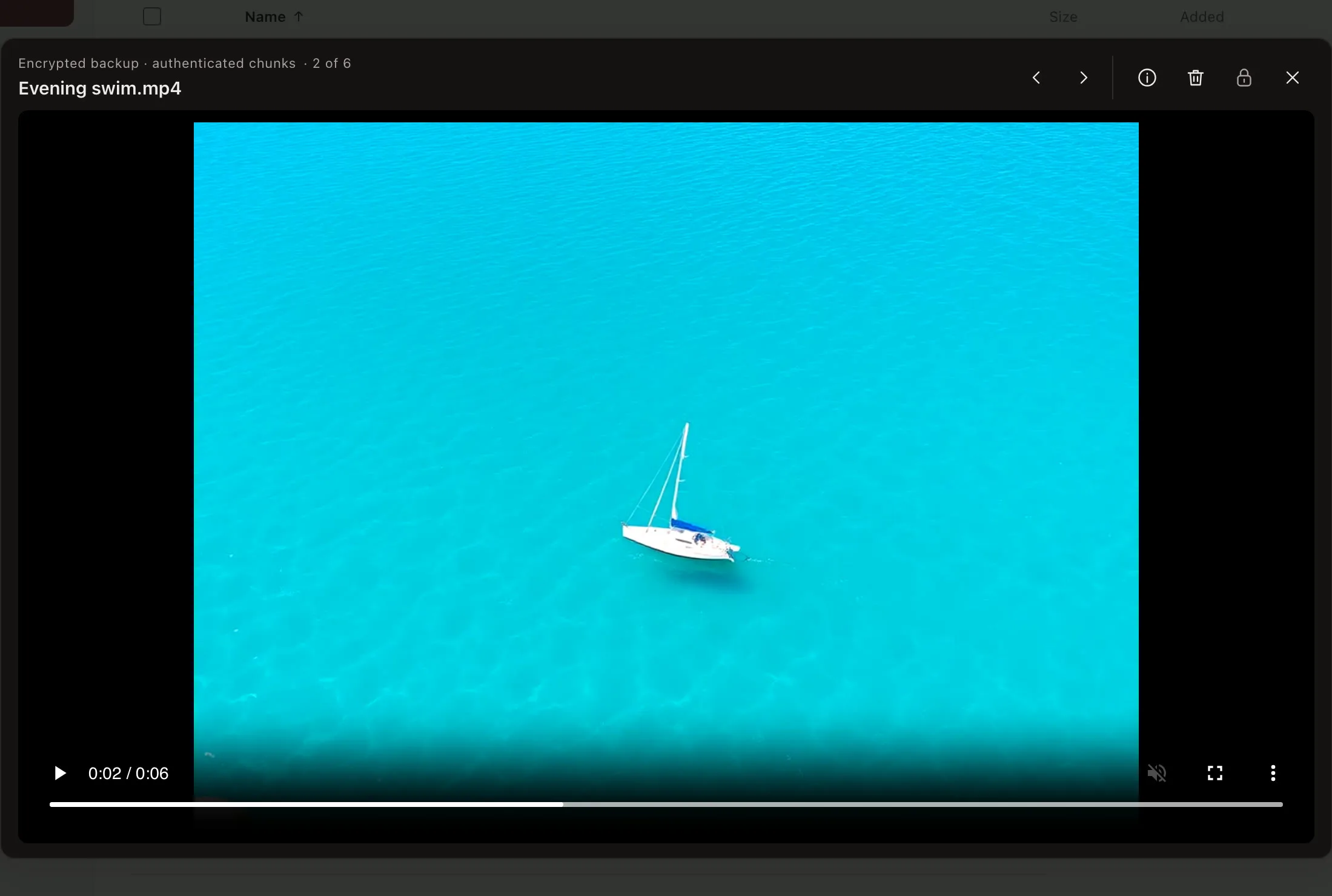
Videos stream from the encrypted copy, a few blocks at a time, into memory. Klenod doesn't write decrypted files to play them, and doesn't keep thumbnails on disk. There is no mounted drive, no kernel extension and no Finder in between, so nothing for Quick Look or the Trash to hold on to.
WMV, FLV and other formats a Mac can't play are converted as you watch, in a sandboxed helper, with the copy of FFmpeg that comes with Klenod. There's nothing to install. You can also make playable copies of many videos at once and keep the originals.
Organize like a file browser
Folders as deep as you like, a folder tree, list and grid views, tags, search and filters. Select files and whole folders to move, share, export or delete them together, or drag them onto a folder, with undo.
Each photo and video keeps the date it was taken and, if the camera recorded it, the place. Press I in the viewer to see them, with the people found in it.

Search and people
Search finds names, folders and tags straight away. Three more kinds of search can be turned on for a library in Settings.
- Text in pictures
- Reads the words in photos, video frames and text files, so a search for a street name finds the photo of the sign.
- People
- Groups faces into people you can name, merge and correct. A row of faces above the library shows who appears in the folder you're in.
- Similar pictures
- Find similar, in the viewer, shows the other pictures that look like the one you're on.
The work happens on your Mac, in a helper that has no network access and can't write files. What it finds is stored inside the encrypted library, and shares never include it. Turning it off deletes what was found, including the names you gave people.
Sharing and requests
Share a file, a folder or the whole library as an encrypted link. Make one link per person so you can stop sharing with one without affecting the others. Add an end date or a password.
Request links work the other way round. Anyone with one can send files into your library, encrypted so that only you can open them. Shares are signed, so people in your contacts can see a link really came from you.

Your storage
Keep the library on your Mac, on an external drive (exFAT works, so it moves between computers), or in S3-compatible storage you control. Mirror one to another for a second copy.
The library can also live in an iCloud Drive or Dropbox folder. It syncs as encrypted files, and several Macs can use it, even at the same time.
Take the drive to any Mac, run Klenod from it, and open your library there. There's nothing to install and no account, and Klenod doesn't write decrypted files to that Mac.
The library is plain encrypted files in a folder, with a documented format. It opens offline, and you can restore files to a folder you choose at any time.
For Cloudflare R2 or other S3 storage, enter the address, bucket and keys on the unlock screen. Klenod creates the bucket on first use if it doesn't exist, and can keep the keys in your Mac's Keychain.

Backup you can check
Second copy keeps an encrypted copy on another drive or in your own S3 storage, and updates it with what is new. It opens with the same passphrase. Files you delete in the library stay in the copy, so a mistake can't empty your backup.
Check library reads every file and confirms it is complete and unchanged, and names any that aren't, while your second copy can still replace them.
The recovery sheet is a page to print. It says where your library and its copy are and how to open them on a new Mac, with lines to write your passphrase by hand. The passphrase itself is never printed on it.
Make a recovery key in Backup, and you can set a new passphrase if you ever forget yours. It's shown once, so write it down and keep it apart from the library, as carefully as the passphrase.

Locking and privacy
The library locks after you've been idle, and when your Mac sleeps or locks its screen. Press ⌃⌥⌘L in any app to lock it and hide Klenod at once.
Klenod's window is left out of screenshots, screen recordings and screen sharing, so a call or a recording doesn't show your library by accident. A camera pointed at the screen still sees it. Library folders are also kept out of Spotlight.
Connections to the services you open links from can go through a proxy you set, Tor included. With one set, nothing connects without it.
Changing your passphrase is instant. If you think it leaked, rekey the library. Klenod copies everything into a new library with a new key, without writing decrypted files.
| Idle lock | On by default |
|---|---|
| Sleep and screen lock | Locks the library |
| Lock shortcut | ⌃⌥⌘L, from any app |
| Screenshots and sharing | Klenod's window is left out (you can change this) |
| Spotlight | Skips library folders |
| Rekey | A new key. Old copies still open with the old one, so destroy them |
Be first to try it.
One email when the Mac app is ready. No tracking. How we handle it.